
Windows has multiple command line utilities that can help find the version of the Windows OS running on your computer. Below is the list of commands and the information they provide.
Systeminfocommand – Windows OS name, version, edition and build numberWMICcommand – OS name and versionVercommand – OS version
Find OS Version from command line(CMD)
Systeminfo is a useful command that can dump information about hardware and software running on your computer. Since we are interested in only the OS details, we can filter out other information with the use of findstr command.
systeminfo | findstr /B /C:"OS Name" /C:"OS Version"
Examples:
C:\>systeminfo | findstr /B /C:"OS Name" /C:"OS Version"
OS Name: Microsoft Windows 10 Enterprise
OS Version: 10.0.19042 N/A Build 19042
This command works on Windows 19, Windows and on Server editions also. Find example for Windows 7 below.
systeminfo | findstr /B /C:"OS Name" /C:"OS Version"
OS Name:                   Microsoft Windows 10 Enterprise
OS Version:                10.0.19042 N/A Build 19042
In case of Windows 7 SP1, the output would be slightly different as below.
c:\>systeminfo | findstr /B /C:"OS Name" /C:"OS Version"
OS Name:                   Microsoft Windows 7 Enterprise
OS Version:                6.1.7601 Service Pack 1 Build 7601
If you want to print more details, you may use just ‘OS’ in the findstr search pattern. See example below for Server 2008.
C:\>systeminfo | findstr /C:"OS"
OS Name:                   Microsoft Windows Server 2008 R2 Enterprise
OS Version:                6.1.7600 N/A Build 7600
OS Manufacturer:           Microsoft Corporation
OS Configuration:          Standalone Server
OS Build Type:             Multiprocessor Free
BIOS Version:             IBM -[BWE117AUS-1.05]-, 7/28/2005
Check Windows version using WMIC command
Run the below WMIC command to get OS version and the service pack number(Windows 7 and prior versions).
wmic os get Caption,CSDVersion /value
Example on Windows 10:
c:\>wmic os get Caption,CSDVersion /value
Caption=Microsoft Windows 10 Enterprise
CSDVersion=
Example on Windows 7:
c:\>wmic os get Caption,CSDVersion /value
Caption=Microsoft Windows 7 Enterprise
CSDVersion=Service Pack 1
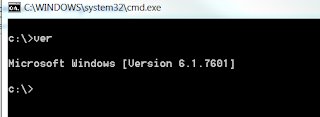
If you want to find just the OS version, you can use ver command. Open command window and execute ver command. But note that this does not show service pack version.
C:\>ver
Microsoft Windows [Version 10.0.19042.2251]
C:\>
This command does not show version on Windows 7/Windows 10.
Also Read:
Complete list of Windows CMD commands
How to find windows edition ?
type systeminfo in cmd
Execute 'Winver' from command prompt or from Run window. It will show you the windows version.
The "systeminfo" command gives the edition info under the headings "OS Name:" and "OS Version:" as well as a lot of other information all in the console. You can parse it with "findstr" if you need only the edition info:
systeminfo | findstr /B /C:"OS Name" /C:"OS Version"
I was looking for this…I had to write a script which runs on different windows editions and I need to capture the os name..this post helped me..thank you..
Very helpful if I want to do a remote command without GUI. Thanks a ton!
Thanks friend for the tip..I need to find os version from windows dos and this has helped me..
How can I script this for multiple servers and save the output in csv format?
Run the below command on each of the servers.
On my xp system it prints the following data.
You can use psexec.exe or rsh tool to run this command remotely on the servers.
How to find the bit size?
you can this command
c:/>wmic os get osarchitecture
systeminfo | findstr /C:"System type" would give you the processor architecture. From this you can derive if it's 32 or 64 bit. You can also use wmic cpu command to get processor info.
Note: systeminfo | findstr /B /C:”System Type” will only show if the processor supports 64 bit or 32 bit and not what bit depth the installed Windows OS is. You could have a 32 bit OS installed on a x64-based pc
I have combined the previous commands:
systeminfo | findstr /B /i /C:”OS Name” /C:”OS Version” /C:”System Type”
Remember “findstr is case sensitive unless you add the /i
I was wrong, systeminfo | findstr /B /i /C:”System Type” does show the bet depth of the OS. I just ran the command on a quad core Celeron with a windows 10 enterprise 32 bit and it returned “X86-based PC”.
I did not mean to mislead anyone
How to get the OS name and version for a list of servers ?
Run the command mentioned in the post on each of the servers using psexec or rsh. I will soon add a post on psexec.
The above can be used to retrieve information from a remote computer
I need to find the image version of a windows 7 installation. What command do I use to find out?
If I have understood correctly, you have different images of Win7 and you want to find out which image you have installed on the computer? AFAIK, windows can’t do that.
I can think of a workaround for this. You can add custom reg key and set the image version number in that and then create the image. And on the installed computer, you can do reg query from command line.
The quotes are incorrect ASCII characters (MS Office quotes).
Use this version instead:
I’ve fixed the issue in the post. Copy pasting the command would work fine now. Thank you for pointing that out.
No support for systeminfo within xp home
You can use registry keys in that case. check this out.
Windows version in registry key
How can I get the serial number from a Windows Server 2000 device. wmic bios get serialnumber does not work on this windows version. PLEASE HELP
anybody know how can do that but in vbscript or .vbs file
strComputer = “localhost”
Set objWMIService = GetObject(“winmgmts:” _
& “{impersonationLevel=impersonate}!\\” _
& strComputer & “\root\cimv2”)
Set colOSes = objWMIService.ExecQuery(“Select * from Win32_OperatingSystem”)
For Each objOS in colOSes
Wscript.Echo “Version: ” & objOS.Version ‘Version & build
Wscript.Echo “OS Type: ” & objOS.OSType
Next
just type “winver” command in run and
you will get windows version information on GUI.
Nice post… thank you..
Checked when installing mango db ..
wmic command is not working …. any idea on the same ? What could be the probable solution to make work of wmic command ?
checked a few sites.. but found the exact answer..thx..
I cannot access cmd in windows 2008
i want to know the o.s. details of remote computer through command prompt or program….
–Use this for remote PC IP or PC name
WMIC /node:RemoteComputerName os get buildnumber,caption,CSDVersion /format:csv
Thank you very much.
This was exactly the info I was looking for.
Rest of the ‘Comments’ were also very informative. Thank you all you guys.
regards
Sharath
Thank You so much. I am using windows 7 but the systeminfo cmd isn’t work. when i typed, it displays “systeminfo” is not recognized as internal & external cmd. How to solve this problem??
Hi anu,
check spelling once it will work correctly. in any version of windows. or simply try this command to take your version detail on notepad file “systeminfo >> notepad.txt”
hope it will help you :)
6 years from original post and still useful for another person. Thanks very much.
Hey! Please, use the first way only to yourself. The first way is slow, but most importantly – it won’t work for other locales than EN. For other locales it will get either blank result or incorrect result. This post is old, these were different times. As a coder, I’d say that nowadays second way is safe to use. There’s no point in keeping compatibility for OS made 15 years ago (XP).
Very helpful forum wmic did the work for me
Thanks
Asim
what about Windows CE, I couldn’t fin similar command
everything is interesting (and really HELPING!) but this works literaly ONLY if windows is not localized ;-)
Please note: systeminfo | findstr /B /C:”OS Name” /C:”OS Version” – this command doesn’t work globally, only works for English language Windows installations. For example in a German language Windows the systeminfo output writes “Betriebssystemname” or “Betriebssystemversion” instead of “OS Name” or “OS Version”.
For Localized Windows, use the wmic command line. Filters are object attributes, so not translated.
Ok that’s useful but how do I find Windows version (and architecture) on a disk removed from his broken pc and installed on another pc/system?