
We can find the .NET version running on a computer by either of the following ways.
Run appwiz.cpl. This shows the list of all the programs installed on your computer.
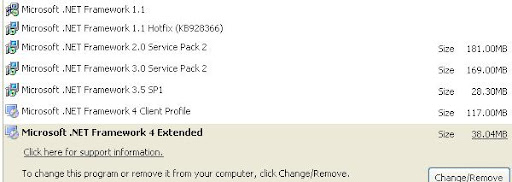
Check for the entries starting with ‘Microsoft .NET Framework’. You may find multiple entries of .NET Framework like below. The higher version of the .NET package you have is the version running on your computer. In the below case it’s .NET Framework 4.
Find .NET Framework version from command prompt
You can run below wmic command to retrieve the version
wmic product get description | findstr /C:.NET
Example:
C:\>wmic product get description | findstr /C:.NET
Microsoft .NET Framework 4.5.1
You can list older .NET versions running on your computer by running a simple command shown below.
dir /b %windir%\Microsoft.NET\Framework\v*
Running the above command will print all older .NET versions installed on the computer. Note that this does not show the latest version. So this command can be helpful to find older versions, we should check Appwiz.cpl or use the WMIC command above to find the latest version.
C:\> dir /b %windir%\Microsoft.NET\Framework\v*
v1.0.3705
v1.1.4322
v2.0.50727
v3.0
v3.5
v4.0.30319
Can we remove the older versions keeping the latest one? Would there be any applications that can run only with the older .NET versions?
Do you know what’s the default version that comes with Windows 7 enterprise? I currently have 4.5.1 on my system. Wanted to know if this’s default on every Windows 7
What apps would fail to run if .net is uninstalled. I want to try this but want to make sure the system would run fine. It’s ok if some application like IE fails to work, but I do not want the system to be unusable.
Is it ok to have multiple versions of .NEt installed on the system. As shown in the post, I too have several versions, am not sure how I ended up with all of them. Should n’t an update or installing a new version override/remove the previous version?
It’s normal to have multiple versions of .NET framework installed. Most commonly you’d find .NET 3.5x and a current version. Some applications require features specific to certain versions of .NET, so removing earlier frameworks may cause an application to throw errors or stop working. However, usually this is handled well and the application will prompt you to re-install the missing .NET framework. .NET 3.5 can also be enabled in Windows via Programs and Features.